Four Snags in Initial Jetson Orin Nano Setup
EDGE AI
A black screen is usually a firmware-generation problem, and a board that has cleared setup gets stuck once more at the LAN port and the input size the moment a camera goes on.
The Jetson Orin Nano Developer Kit's four gates in the order NVIDIA's documents give, plus the data rate and input resolution I calculated for a 5 MP inspection camera attached to it.
About 13 min read
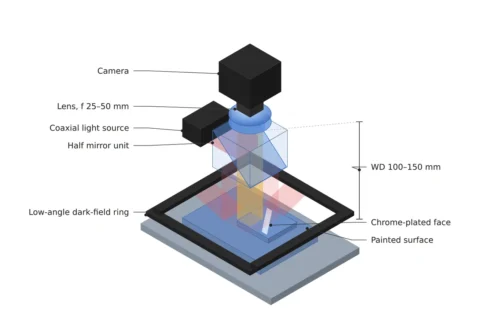
Start with the part. It is a matte gray molded cover, and the defect to find is a scratch 100 μm wide. A matte surface scatters light evenly in all directions, so a blown-out hotspot rarely covers the frame, and the lighting can start with a single diffuser.
With the optics this forgiving, the variable left is the small board that sits behind the camera. Here that board is NVIDIA's Jetson Orin Nano Developer Kit, and the path runs from the first power-on to the moment the camera image enters the model.
If the screen stays black on setup day, the first thought is to send the board back, and once setup is done another day goes into searching the model for the reason a scratch disappeared. Meanwhile covers ship on the strength of human eyes, and a 100 μm scratch slips past those eyes easily. Both of those days have a place to check before you suspect a broken board or a flawed model. The order follows NVIDIA's developer kit documents. Clear the four gates of display, firmware, install target and power mode in turn, and before attaching the camera, calculate the LAN port's data rate and the model's input size. The numbers assume one 5 MP monochrome camera.
No picture does not mean a dead board
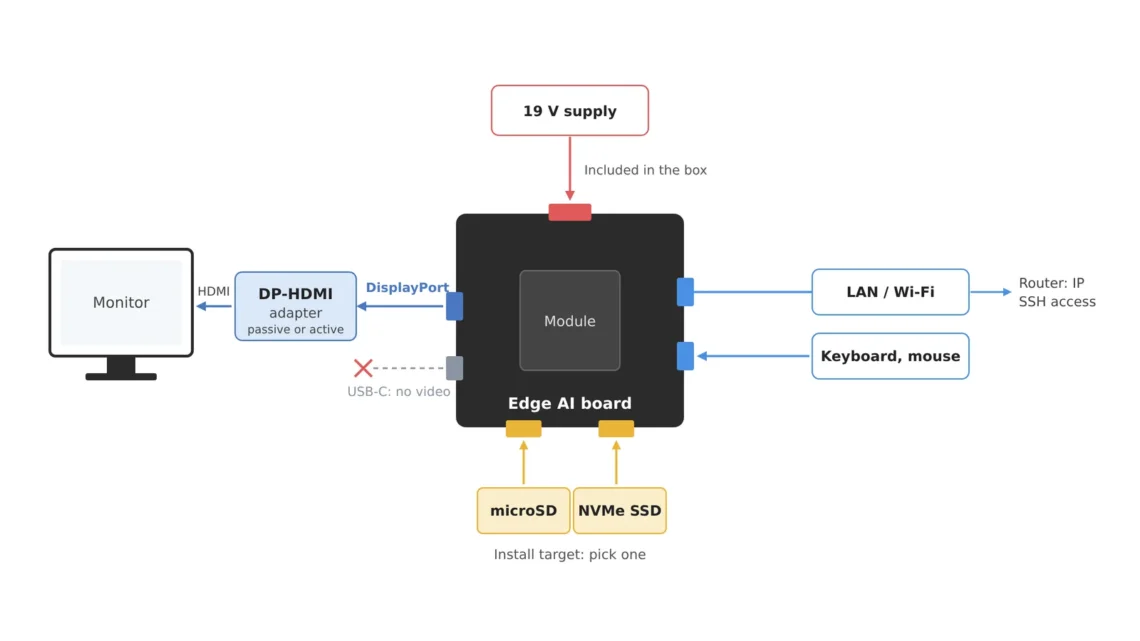
The developer kit has one video output, DisplayPort1. NVIDIA's hardware layout page says this connector is the only display output, that an HDMI monitor takes a DisplayPort-to-HDMI adapter or cable, and that both passive and active adapters are supported. The same page also says the USB-C port does not output a display signal. So you can save the time spent waiting with a USB-C monitor cable plugged in.
If the screen is blank while the power LED is on and the fan spins, the board is usually alive. On the first day no account exists yet, so there is no way in over the network; to see its state without a screen, connect a USB-to-TTL serial cable2 to pins 3 (RXD), 4 (TXD) and 7 (GND) of the button header. If boot messages flow on the serial console, the problem is on the display side, and if nothing flows, it is power or firmware. I would put off swapping adapters until I have read that one line.
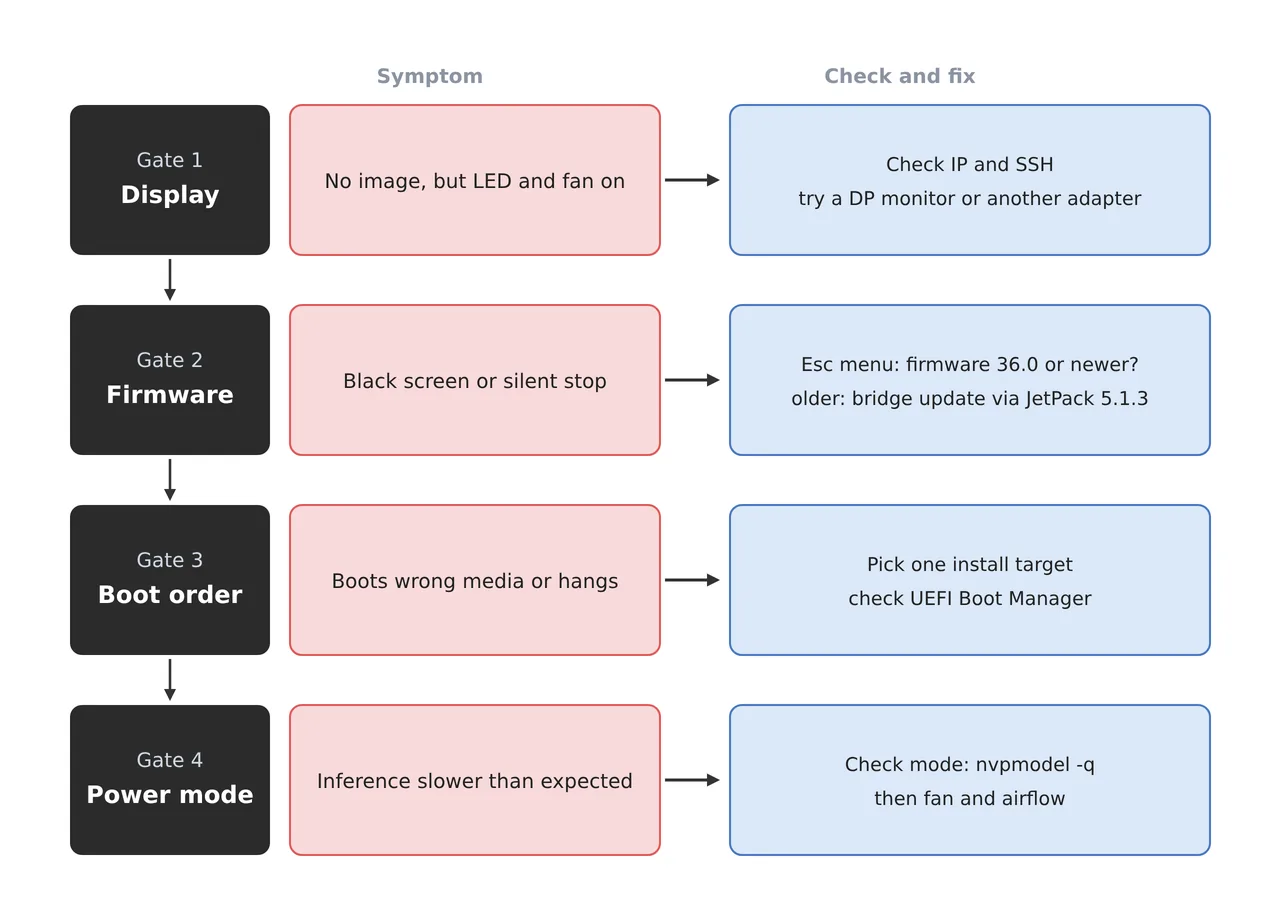
The four rows are the order in which to clear them, top to bottom. The trap is that the first and second rows show similar symptoms. If the screen is black but the board is alive, suspicion moves from the cable to the firmware inside the board.
Firmware generation hides behind the black screen
Apart from the operating system, the board keeps its boot firmware in a small flash memory called QSPI3. The JetPack4 7.2 and later releases the current documents describe will only install when this firmware is from the JetPack 6.x generation, version 36.x. If the firmware the kit shipped with is older than 36.0, the screen stays black however many times you remake the install media. NVIDIA's documents separately warn against repeatedly booting an incompatible image or leaving the device at a black screen for long.
Read the version in the UEFI5 setup screen. Power on, press Esc a few times after the NVIDIA logo, and the setup menu opens with the firmware version line near the top. With no screen at all, press the same Esc on the serial console from before. If it starts with 36, like 36.3.0, go straight to installation; if it is lower, like 35.5.0, take the update path.
The update path uses the JetPack 5.1.3 microSD image from the previous generation as a bridge. Boot that image, finish the first-boot setup and connect to the Internet, reboot to run the bootloader update, install the QSPI update package (nvidia-l4t-jetson-orin-nano-qspi-updater) and reboot once more. Then power off, swap the media and move up to the JetPack 6 generation. As the documents say, several reboots follow in a row, and power must not be pulled during an update.
Run the 7.2 installer on a board with 36.x firmware and one more prompt asks about a firmware update. If Y is not pressed within 30 seconds, the prompt disappears and installation continues, but according to the documents that installation fails later. By my standard those 30 seconds are the shortest and most expensive moment of the whole setup.
Pick only one install target
From JetPack 7.2, the image you burn to a microSD card is gone and only the Jetson ISO installer6 remains. Write the ISO to a USB drive of 16 GB or more with a dedicated tool (the documents point to Balena Etcher), and prepare a 64 GB or larger UHS-1 microSD card or an NVMe SSD7 as the install target on the board. Copying the ISO file over in a file manager does not make a bootable USB drive.
Booting the installer takes the same road as the firmware check. Press Esc at the NVIDIA logo, enter the Boot Manager and pick the USB drive. The installer asks you to choose a target, and the target you choose is erased entirely. If you plan to use NVMe, it has to be seated in an M.2 Key-M slot before the installer starts in order to appear in the list. The board has two Key-M slots, a 2280 size (PCIe 3.0 x4) and a 2230 size (PCIe 3.0 x2).
With a microSD card and an NVMe drive both installed, two targets appear in the installer's list. There is no reason to list a drive that must not be erased, so for a first install I would leave only the medium to be installed. When installation ends, boot from the installed medium as the documents direct, and check in UEFI's Boot Manager which medium the board will start from.
Read the power mode before you measure
A freshly installed board starts, in the documents' words, typically in the 25W power mode8. Click the power mode indicator in the desktop's top bar and choose MAXN SUPER to move toward maximum performance; in a terminal, read the current mode with sudo /usr/sbin/nvpmodel -q and change it by adding the mode number after -m. When the mode changes, the same model's inference time changes too.
So the table where inference speed gets written down carries a power mode column at the very top. It keeps two numbers from different modes from sitting side by side while the model takes the blame. Raising the mode raises the heat too, so the same row notes whether the case has a fan and whether air has room to pass around the board. I do not use a speed record with those three columns empty as comparison data.
Attach a camera and the LAN port chokes first
Time to attach the inspection camera to the configured board. Take a field of view 80 mm wide over the cover and assume a 2,592 × 1,944 px 5 MP monochrome camera: the resolution9, the width one pixel covers, is 80 mm ÷ 2,592 = 30.9 μm/px, and a 100 μm scratch spans 3.24 pixels. That barely clears the three pixels I use as my standard.
If this camera sends 30 frames per second at 8 bits, one frame is 5.04 MB, a second is 151.2 MB, and in bits 1.21 Gbit/s. The developer kit's wired LAN is a single Gigabit Ethernet port, so the stream is already over the line rate of 1 Gbit/s. Receiving the same image over that one port, 24.8 frames per second is the ceiling even before protocol overhead is taken out. Like turning up the water in a pipe of fixed width, where the excess spills onto the floor, the excess shows up as dropped frames or a lowered frame rate.
1.21Gbit/s
Data rate of 5 MP 8-bit video at 30 fps (assumed camera)
24.8fps
Ceiling of one Gigabit LAN port (before protocol overhead)
0.8px
A 100 μm scratch after shrinking the whole frame to 640 px
The board already has connectors to widen the road. Per the hardware layout page, four USB 3.2 Type-A ports are rated at 10 Gbps, and there are two 22-pin MIPI CSI camera connectors10. The actual USB speed, though, is set by the camera's own interface, so that is for the camera's spec sheet to confirm; if you keep the LAN camera, the road left is a setting that sends only the region where scratches occur. The third number, 0.8 px, is a story from inside the board.
A 100 μm scratch vanishes at a 640 px input
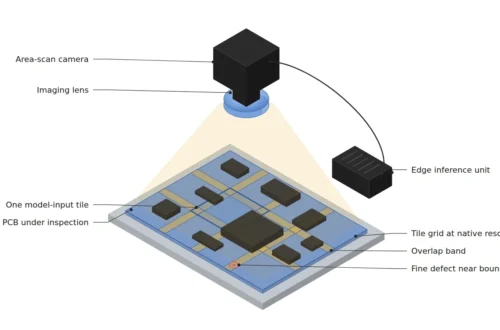
Video that reaches the board safely shrinks once more at the model's entrance. Feed the whole 2,592 px frame into a detection model that takes a 640 × 640 px input and the width shrinks 4.05 times, so the scratch that covered 3.24 pixels becomes 0.8 of one. A scratch that cannot fill a single pixel mixes with the background around it and leaves only a slight brightness difference, which is hard to separate a defect by.
So cut the image instead of shrinking it. With tiled inference11, laying 640 px tiles with 64 px of overlap, that is 5 across and 4 down, 20 tiles per frame. At 24 frames per second, one frame has 41.7 ms to spend and each tile gets 2.08 ms. Whether the board delivers that 2.08 ms is known only by measuring it in the power mode recorded earlier. The calculation for overlap and tile edges is written up separately in the tiled inference article.
Choosing a 16 mm lens puts the working distance WD12 to the cover at about 240 mm by calculation. That value assumes a 2.2 μm pixel and the thin-lens approximation. The three rows below run from scratch size to model input.
| Item | Value | Condition and basis | In plain words |
|---|---|---|---|
| ① Minimum defect size | 100 μm scratch = 3.24 px | FOV 80 mm ÷ 2,592 px = 30.9 μm/px, assumed 5 MP mono camera | The scratch covers a little over three pixels |
| ② Optical setup · WD | 16 mm lens, WD about 240 mm | Assumed 2.2 μm pixel, magnification 0.071, thin-lens approximation. Matte cover, so start with diffuse light | The lens tip hangs about a hand's span above the cover |
| ③ Algorithm parameters | 20 tiles of 640 px (5 × 4, 64 px overlap) | Shrinking the whole frame leaves the scratch at 0.8 px. At 24 fps, 2.08 ms per tile | Cut the picture instead of shrinking it |
Looking down the three rows shows that the last gate of board setup is row ③. Even a board past display and firmware loses row ①'s 3.24 pixels the moment the image is shrunk whole, and that loss barely shows in overall accuracy, appearing only in the recall of the small-scratch class.
Row ②'s 240 mm is the number to check for whether the bench height and the light bracket fit together. Even on a matte cover, if spots that shine along the mold texture mix in, whether the 3.24 pixels hold cannot be guaranteed before a sample test.
From powering up the board to matching the camera's data rate and input size is close to what an edge vision engineer does in the first week of commissioning, and someone with this order in hand shortens commissioning. From a cost point of view, the bandwidth between camera and board, and the compute headroom to run the tiles, set the inspection speed more than the board's price does. This article explains technology and is not investment advice. See our Disclaimer.
Field Note
If this board came to an inspection bench, on the day the camera goes on I keep photos of the firmware version on the UEFI screen and the output of nvpmodel -q. Then I hold the 5 MP camera at 24 fps and count for ten minutes whether frame numbers skip. If numbers go missing, that is a sign the LAN port calculation is right, so I first test a setting that sends only the region where scratches occur, in place of lowering the resolution.
Field Checkpoints
Once the firmware version photo and the count of dropped frames are in hand, answer the questions below one at a time and turn the road between board and camera into spec-sheet sentences.
- When the screen was blank, did you confirm on the serial console whether the board booted? (whether you check the board is alive before swapping adapters)
- Is the firmware version on the UEFI screen 36.0 or newer? (if lower, whether you take the update path through JetPack 5.1.3)
- Is only one target medium offered in the installer? (whether a medium that must not be erased has been removed)
- Before measuring inference speed, did you record the
nvpmodel -qoutput and the fan and airflow state? (numbers from different modes cannot be compared) - Does the camera's data rate fit within the 1 Gbit/s LAN port? (5 MP 8-bit at 30 fps is 1.21 Gbit/s)
- Is the 16 mm lens's WD of about 240 mm secured between the bench and the light bracket? (whether the lens has a place to hang about a hand's span above the cover)
- Does a 100 μm scratch stay at 3 px or more at the model's input size? (shrinking the whole frame leaves 0.8 px)
Frequently Asked Questions
If I only have an HDMI monitor, which adapter should I buy?
NVIDIA's documents state that the DisplayPort output supports both passive and active DisplayPort-to-HDMI adapters. So when the screen is blank, suspect in this order: whether the board booted, the firmware generation, then the adapter. Plugging straight into a monitor with a DisplayPort input removes the adapter as a variable in one step.
Can the microSD image installation described in older guides still be used?
From JetPack 7.2, microSD images drop off the supported list and the ISO installer is used. The firmware update path document, however, still uses the JetPack 5.1.3 and 6.2.1 microSD images as a bridge, so boards with firmware older than 36.0 still need those images. The firmware version on the UEFI screen decides which document to follow.
Glossary
- [1] DisplayPort DisplayPort
A digital connector standard that sends video to a monitor. Plugging into an HDMI monitor goes through a conversion adapter. ↩ - [2] USB-to-TTL serial cable USB to TTL serial cable
A cable that links the board's serial pins to a PC's USB port. It is a stethoscope for looking inside the board without a screen. ↩ - [3] QSPI Quad SPI flash
A small flash memory on the board that holds the boot firmware, which runs before the operating system. ↩ - [4] JetPack JetPack SDK
The operating system and AI libraries NVIDIA bundles for Jetson boards. Each generation requires different firmware. ↩ - [5] UEFI Unified Extensible Firmware Interface
The firmware that runs first at power-on, and its setup screen. The firmware version and the boot medium are checked here. ↩ - [6] ISO installer ISO installer
An image that packs a whole install disc into one file. It boots only after a dedicated tool writes it to a USB drive. ↩ - [7] NVMe SSD NVMe solid-state drive
A storage device connected over PCIe lanes. The documents recommend it when you need more capacity and better storage performance. ↩ - [8] Power mode power mode, nvpmodel
A setting that bundles the caps on the power and clocks the board may use. When the mode changes, the same model's inference time changes. ↩ - [9] Resolution resolution, μm/px
The width one pixel covers on the part. At 30.9 μm/px, 1 mm is seen as a little over thirty-two pixels. ↩ - [10] MIPI CSI Camera Serial Interface
A standard that connects a camera sensor directly to the board with a short ribbon cable. ↩ - [11] Tiled inference tiled inference
Cutting a large image into tiles of the model's input size and running inference on each tile. Tiles overlap slightly so defects on a boundary are not missed. ↩ - [12] WD working distance
The distance from the front of the lens to the surface being inspected. The calculation here uses the thin-lens approximation. ↩
References
- NVIDIA, Jetson Orin Nano Developer Kit User Guide, Hardware Layout (video output, adapters, USB-C, Ethernet, USB, MIPI CSI, M.2 slots), accessed October 24, 2026
- NVIDIA, Quick Start Guide (JetPack 7.2.1, Jetson ISO r39.2.1, install media requirements, 30-second firmware update prompt, default 25W power mode), accessed October 24, 2026
- NVIDIA, JetPack 6.x Update Path (firmware 36.0 threshold, JetPack 5.1.3 bridge path, serial console pins), accessed October 24, 2026
- NVIDIA, How-to Guides (
nvpmodel -q,nvpmodel -m), accessed October 24, 2026 - Formulas: data rate = horizontal pixels × vertical pixels × 1 byte × fps, resolution = FOV ÷ horizontal pixel count, WD ≈ f × (1 + 1/m) (m = sensor width ÷ FOV), tile count = ⌈(W − overlap) ÷ (640 − overlap)⌉ × ⌈(H − overlap) ÷ (640 − overlap)⌉
Related reading — It Worked on the Server, So Why Does Accuracy Drop on the Edge? · Why Does a Fanless Edge Device Slow Down by Afternoon? · In the Age of Deep-Learning Inspection, What to Check Before Camera Spec

Noctvision
An engineer who has handled mechanical design and project management for production equipment since 2005. Here I work through the cameras, lenses and lighting that go into equipment with formulas and public data, and record the assumptions and sources alongside the numbers.


You May Also Like
In the Age of Deep-Learning Inspection, What to Check Before Camera Spec
Where Do Fine Defects Go When You Shrink to 640 × 640?